Settings
Overview
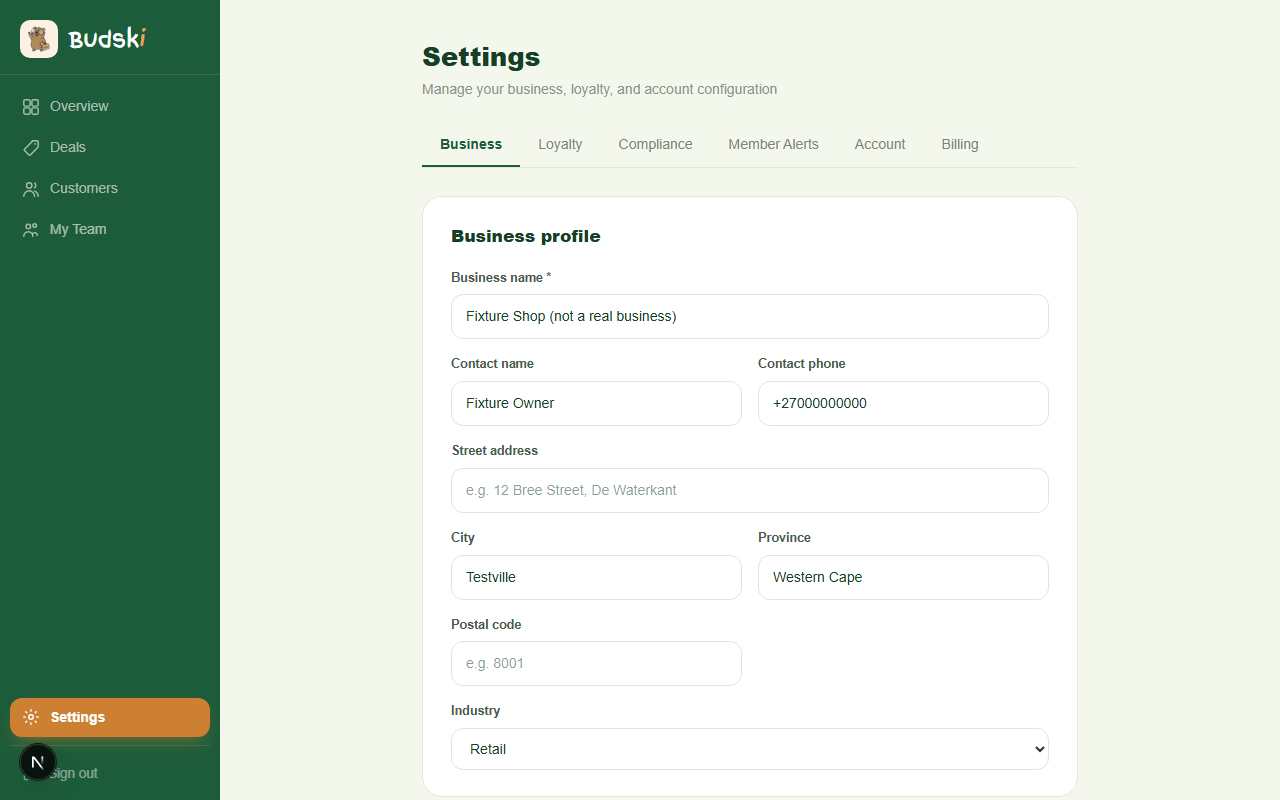
The Settings page is organised into six tabs. Click a tab name to switch between them. Your changes on each tab are saved separately — click Save changes (or the relevant save button) on each tab after making updates.
The tabs are: Business, Loyalty, Compliance, Member Alerts, Account, and Billing.
Business tab
This is where you keep your shop's details up to date. Fill in your:
- Business name (required)
- Contact name and phone
- Street address, city, province, and postal code
- Industry — choose the closest match from the dropdown. If none fit, select Other and type a short description.
Click Save changes when done. These details appear on your printed poster materials.
Loyalty tab
Loyalty model
Choose how your customers earn rewards:
- Visit-based — one stamp per visit; best for cafés, salons, and any business where customers come in often
- Spend-based — stamps unlock at spend thresholds; best for retailers with higher-value purchases
- Deal-based — customers progress by claiming deals; best for flash-deal-driven campaigns
Click Save loyalty model after choosing.
Loyalty tiers
Budski organises customers into four tiers — Newbie, Bronze, Silver, and Gold by default. You can rename these tiers and adjust the thresholds. A bookshop might use Bookmark, Chapter, Novel, and Author instead.
The starting tier (Newbie) has no threshold — every new customer starts there. Customers move up automatically as their stamp count grows.
You can also add a reward description to each tier to remind yourself (and your staff) what benefit members at that level receive.
Click Save tiers when done.
Compliance tab
★ Legislative Compliance is available on the Growth plan.
If your business operates in a regulated industry, Budski can maintain an age-verified member register and audit trail. Choose one:
- Standard — no age restrictions; compliance logging is off
- Age-Restricted — for liquor retailers, bars, tobacco shops, and nightlife venues; logs an age verification event the first time each customer redeems at your business
- Cannabis Club — full SACCA compliance suite, including a member register, distribution log, and membership agreements
Once you save a compliance mode other than Standard, a Compliance item appears in the main left-hand navigation.
Click Save compliance settings to apply.
Member Alerts tab
These toggles control which push notifications are sent to your customers via the Budski app. They are not notifications to your own account — they go to your Adventurers.
- New deal alerts — notify members when you publish a new deal
- Flash deal alerts — send an immediate push when a flash deal goes live
- Birthday deal reminders — send a birthday deal on a member's birthday (requires the member to have opted in to birthday reminders in their own app)
Click Save preferences when done.
Account tab
Email address
Your login email is shown here. It cannot be changed from the dashboard. To update your email address, contact help@budski.co.za.
Change password
- Enter your current password.
- Enter and confirm your new password (at least 8 characters).
- Click Update password.
Two-factor authentication is listed here as coming soon.
Billing tab
The Billing tab embeds the full billing management screen — your current plan, payment method, invoice history, and plan change options. See the Billing help article for full details.
Need help? Email help@budski.co.za