Billing
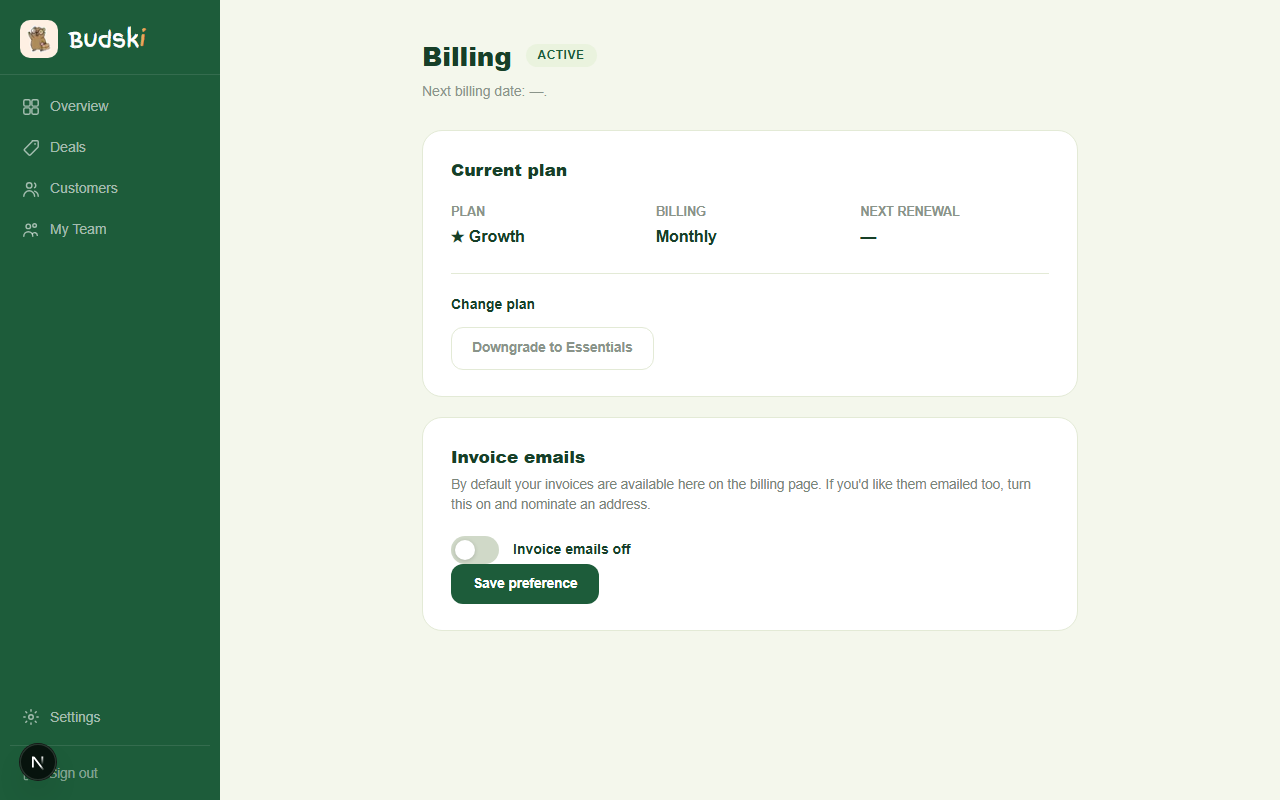
Where to find Billing
Billing is inside Settings → Billing tab.
Your account status
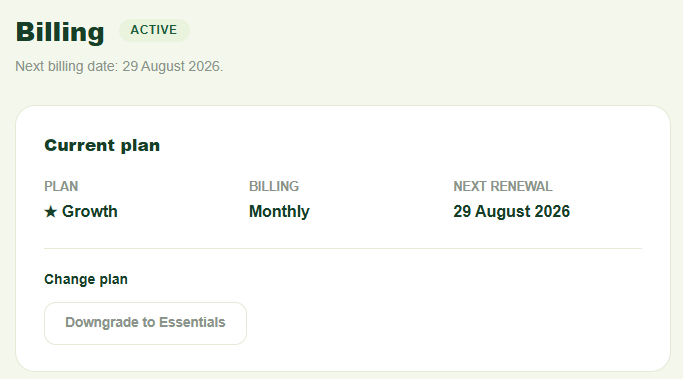
At the top of the page your current status is shown:
- Free trial — your trial is still running; the number of days left is displayed
- Trial ended — your trial has finished; choose a plan to reactivate
- Payment issue — your last charge failed; resolve it to resume stamps, deals, and notifications
- Active — your subscription is live; your next billing date is shown
- Complimentary — your account has been set to free; no billing required
Choosing and activating a plan
If you are on a trial or your trial has ended, you will see two plan cards side by side.
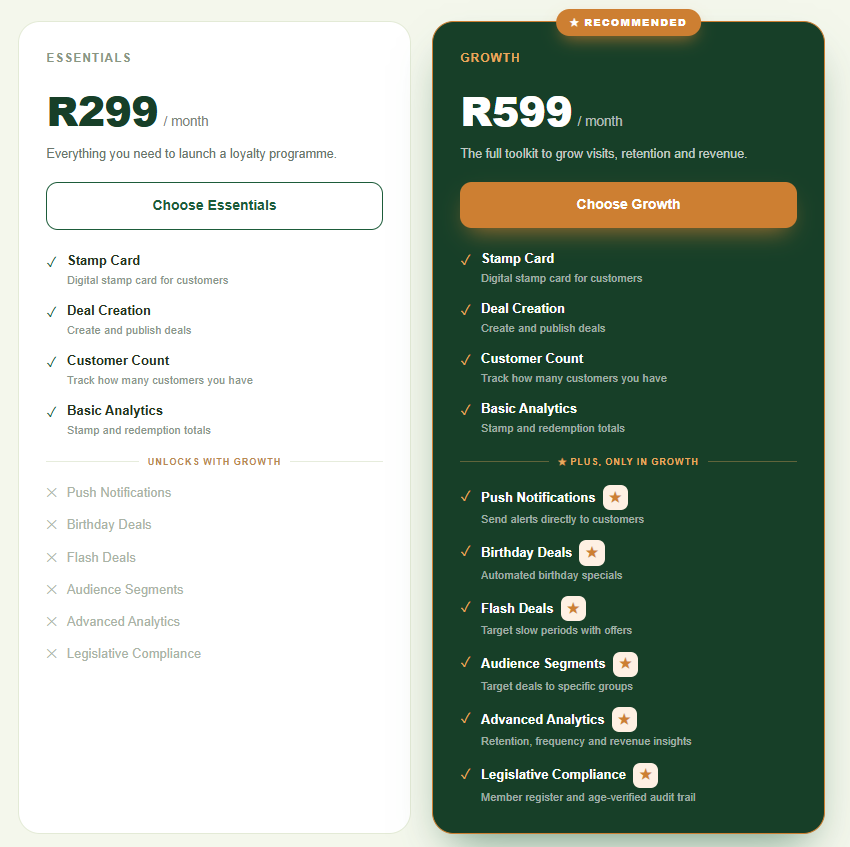
Plans
| Plan | Monthly | Annual |
|---|---|---|
| Essentials | R299/month | R2,990/year |
| Growth | R599/month | R5,990/year |
Annual billing saves you two months compared to paying monthly (approximately 17%).
What each plan includes
Essentials includes: Stamp Card, Deal Creation, Customer Count, and Basic Analytics.
Growth includes everything in Essentials, plus: Push Notifications, Birthday Deals, Flash Deals, Audience Segments, Advanced Analytics, and Legislative Compliance.
How to activate
- Click Monthly or Annual to choose your billing interval.
- Click the plan card you want (Essentials or Growth).
- Click the Pay button.
- A PayFast payment window opens. Enter your card details securely.
- Once the payment is confirmed, your account activates automatically. This usually takes a few seconds.
Payments are processed by PayFast. Budski (Pty) Ltd is not a registered VAT vendor, so no VAT is charged.
Payment issues
If your card was declined and your account is paused:
- Click Pay now to retry the charge with your card on file, or
- Click Update card details to enter a new card
The outstanding amount is shown on screen.
Changing your plan
Upgrading from Essentials to Growth
While active on Essentials, click Upgrade to Growth. You will pay a pro-rata amount for the remaining days in your current period, then Growth pricing from your next renewal date.
Downgrading from Growth to Essentials
Click Downgrade to Essentials and confirm. You keep all Growth features until the end of your current billing period, then Essentials pricing applies from the next renewal.
Payment method
If you have a card on file, it appears in the Payment method section. Click Update to replace it with a new card at any time.
Invoice history
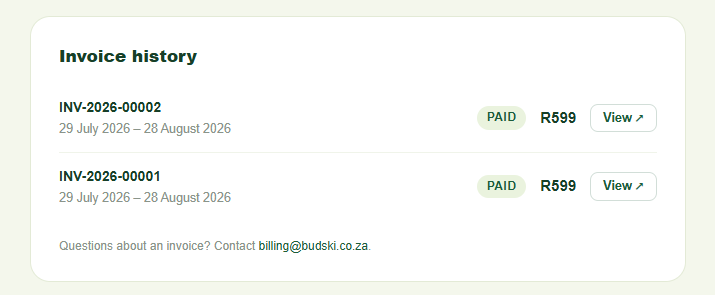
Your past invoices are listed with the invoice number, billing period, amount, and status (Paid or Outstanding). Click View next to any invoice to open a printable invoice page in a new tab.
By default, invoices are only available here on the billing page. If you want them emailed as well, use the Invoice emails section below the invoice list.
Invoice emails
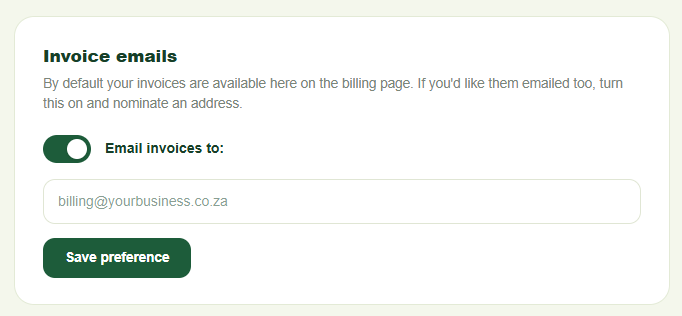
Toggle Email invoices to: on and enter an email address (for example, `billing@yourbusiness.co.za`). Click Save preference. Future invoices will be emailed to that address in addition to appearing on this page. Turn the toggle off and save to stop email delivery.
For questions about a specific invoice, contact billing@budski.co.za.
Need help? Email help@budski.co.za