My Team
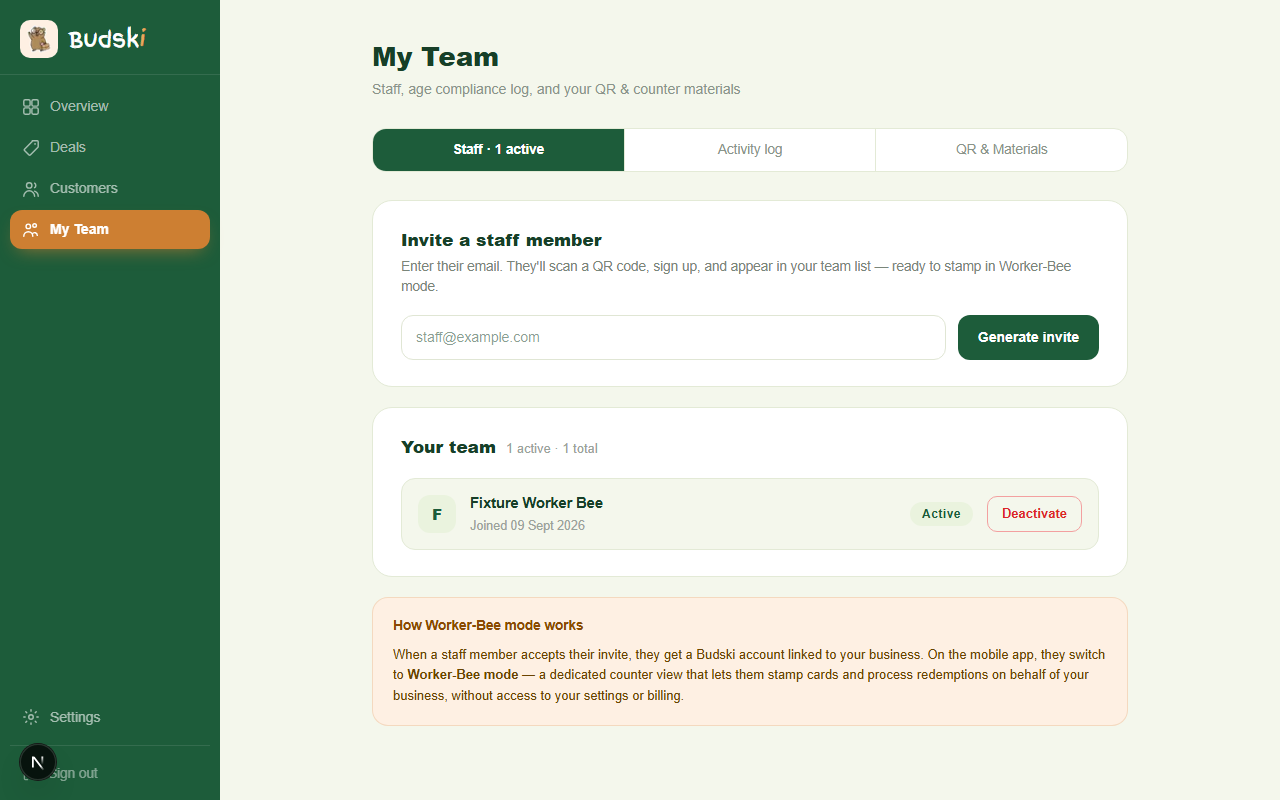
What is the My Team page?
My Team has three tabs: Staff, Activity log, and QR & Materials. Together they cover everyone who works at your counter, what they have been doing, and the printed materials customers use to join your programme.
Staff tab
Inviting a staff member
Your staff stamp loyalty cards and process redemptions through the Budski mobile app in Worker-Bee mode. To give someone access:
- Type their email address into the Invite a staff member field.
- Click Generate invite.
- A QR code and a link appear. Show or send these to your staff member. The invite expires in 24 hours.
Your staff member downloads the Budski app, scans the QR code, and creates an account. Once they accept, they appear in your team list.
Managing your team
Each team member shows as Active or Inactive. Click Deactivate to remove a staff member's access immediately — for example, if they have left your business. You can reactivate them at any time. Active staff can stamp cards at the counter; inactive staff cannot.
Invite history
Below your team list you will see a record of all invites you have generated. Each one shows the email address, its status (Pending, Used, Expired, or Cancelled), and buttons to copy the link again or cancel a live invite.
How Worker-Bee mode works
When a staff member accepts their invite, their account is linked to your business. In the Budski app, they switch to Worker-Bee mode — a counter view for stamping and redemptions only. They cannot see your settings, billing, or customer data.
Activity log tab
If you have enabled Legislative Compliance in Settings, this tab shows a live feed of age verification events and (for cannabis clubs) distribution records logged by your staff. If compliance is not enabled, the tab prompts you to set it up in Settings first.
QR & Materials tab
This tab is where you get your loyalty QR code — the one customers scan to join your programme and collect stamps.
Choosing a poster template
Budski provides seven poster templates in different styles (Shards, Mascot frame, Bright cream, Countertop, Big QR hero, Stamp motif, and Minimal). Click a template name to preview it. Each poster includes your business name and QR code, already filled in.
Printing
Click Print poster to open the browser print dialog. The poster prints at full size with no extra margins. For best results, use A4 paper and a colour printer. The Countertop template is sized for a square counter card.
Security note
Your QR code identifies your business only — it contains no sensitive data. When a customer scans it, Budski assigns them their own permanent Adventurer Code and records the visit. Reward redemption codes are separate, generated at checkout, single-use, and expire after 10 minutes.
Need help? Email help@budski.co.za